Homeschool Year Tracker
Getting started with your tracker
A short guide to making your own copy, filling in the Setup tab, logging your first day, and reading the Dashboard.
1 What you need
- A free Google account. If you do not have one yet, create it at accounts.google.com/signup. It takes about two minutes. You do not need a Gmail address; you can use an email you already have.
- A computer is best for the first setup: making your copy and filling in the Setup tab.
- For daily logging, a phone works with the free Google Sheets app for iPhone or Android.
We do not create or manage your Google account for you. That login stays yours.
2 Get your copy
Leave your email on the Homeschool Year Tracker page and your copy link will appear right away. If you sign up for a plan, or if we set the tracker up for you, you will also get a copy link on the thank-you page.
- Open the copy link.
- Sign in to your Google account if asked.
- Click Make a copy. Your copy saves to your own Google Drive.
If something looks off
- You do not see a Make a copy button. Sign in to Google first, then open the link again. If it still does not appear, try a computer browser.
- The sheet opens as a read-only view. Use File > Make a copy.
- You are on a phone. Open the link in a browser (Safari or Chrome), or install the free Google Sheets app and open the link from there.
3 Fill in the Setup tab
Open the Setup tab along the bottom of the sheet. Fill in the white cells only. Shaded cells fill in automatically; you can leave those alone.
- Enter your Family name.
- Set State to NY or PA. Your reporting line and hour targets update from this choice.
- Enter School year start and School year end. The quarter start and end dates fill in automatically. If your quarters start on different dates, type over the Q2, Q3, or Q4 start dates in the Quarter table. The Dashboard highlights your current quarter.
- If you want a budget target, enter your Annual curriculum budget.
- Optional: paste the link to a Google Drive folder of work samples in Work samples folder link. The folder and the files in it must be shared with anyone who needs to see them, or the links will not open for them.
- Under CHILDREN, enter each child's name and grade. The template has rows for up to three children. If you only have one or two, leave the extra name blank and it stays out of your Dashboard. Level, Required Hours, Required Days, and Compliance Basis fill in from the state and grade.
- Under SUBJECTS, tick the box for each subject each child is studying this year, and untick any they are not doing. These boxes feed the Daily Log dropdowns and the Weekly Plan. The Required? column is optional: tick it for any subject you want the Dashboard to watch each quarter.
4 Log your first day
Open the Daily Log tab. Add one row per lesson, so a morning with math and reading is two rows.
The columns, in order, are:
- Date
- Child (a dropdown of the names you entered on Setup)
- Subject (a dropdown)
- Minutes (enter minutes taught; the workbook converts these to hours on the Dashboard)
- Activity / Notes (optional short note)
- Resource Used (optional)
- Work sample (optional link, for example a photo or document in your Google Drive)
Here is one sample row from the example family, so you can see the shape of an entry:
| Date | Child | Subject | Minutes | Activity / Notes | Resource Used | Work sample |
|---|---|---|---|---|---|---|
| Tue, Sep 8, 2026 | Emma | Math | 70 | Multi-digit multiplication practice | Math workbook Gr 4 | (optional link) |
Emma, Liam, and Ava are example children in the sample workbook, not a real family.
That is enough for the Dashboard to start moving. The other tabs are there when you need them:
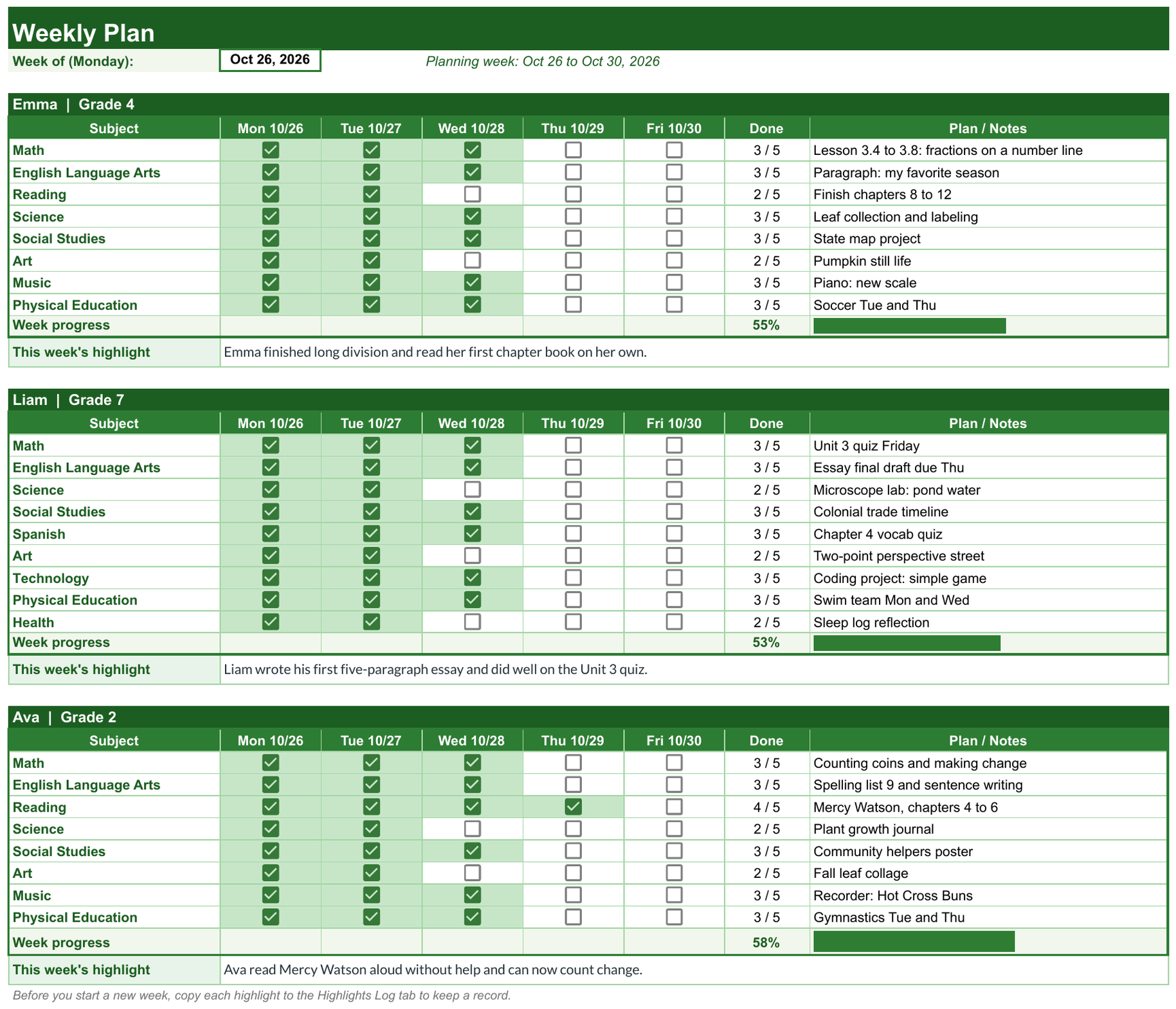
- Weekly Plan: Enter the Monday date in Week of (Monday). Check off each subject as you complete it Monday through Friday, and add a short note in Plan / Notes if you like. A Done count (for example, 3 / 5) and a Week progress percentage fill in automatically. Each child also has a This week's highlight line for one thing that went well. Before you start a new week, copy it to the Highlights Log tab so you keep a record.
- Reading Log: Enter Child, Title, Author, Date Finished, an optional Subject, and Notes. Finished books show up in the Dashboard totals. Pennsylvania portfolios need a list of the reading materials used, so you can list books here even before they are finished.
- Field Trips & Activities: Enter Date, Place / Activity, Children, Subjects Covered, and Notes.
- Curriculum & Budget: Enter Item, Child, Subject, Cost, Purchased Date, Status, and Notes. Totals compare against the annual budget you set on Setup.
- Quarterly Progress Notes: For each child, quarter, and subject, add a row with a short note under What we covered and pick a rating or letter grade under How it's going / grade. New York quarterly reports ask for this for each required subject.
- Assessments & Tests: Record each child's annual assessment (a test score or a written narrative) with its date. Pennsylvania families also have a table for standardized test results in grades 3, 5 and 8.
5 Read the Dashboard
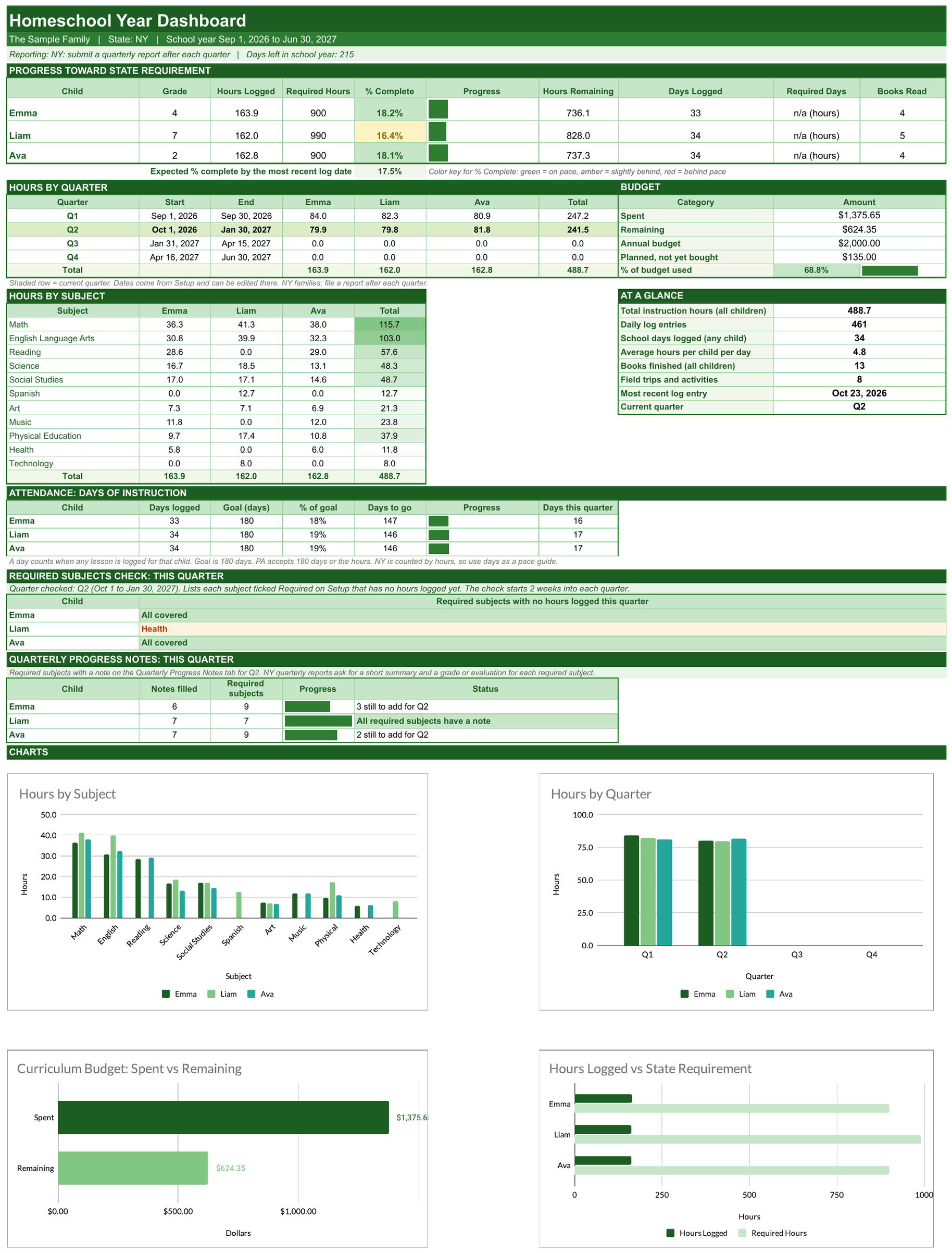
You do not type anything on the Dashboard tab. It updates from your logs.
The main things to look at:
- PROGRESS TOWARD STATE REQUIREMENT: Hours Logged compared with Required Hours for each child, plus Hours Remaining and % Complete.
- A pace check: Expected % complete by the most recent log date, with a color key for % Complete (green = on pace, amber = slightly behind, red = behind pace).
- HOURS BY SUBJECT and HOURS BY QUARTER.
- ATTENDANCE: DAYS OF INSTRUCTION: days logged for each child compared with a 180-day goal, plus days logged this quarter. A day counts when any lesson is logged.
- REQUIRED SUBJECTS CHECK: lists any subject you ticked Required on Setup that has no hours logged yet this quarter. The check starts two weeks into each quarter, so it will not nag you at the start.
- QUARTERLY PROGRESS NOTES: how many required subjects have a note for the current quarter, out of the required subjects you ticked on Setup.
- Budget remaining, books read, field trips, and four charts, including Hours Logged vs State Requirement.
The hour targets come from the State and Grade you entered on Setup, for example 900 hours for elementary and 990 hours for secondary.
7 Not a spreadsheet person?
We can set the tracker up for you. The $39 Done-for-you setup is on the Homeschool Year Tracker page. We build your tracker with your kids, state, and subjects already filled in, then transfer it to your Google Drive.
If you are on an Evergreen plan, you can also keep sending notes by email or the weekly form instead. You do not have to use the sheet if it is not a good fit.
8 Questions
Reply to your purchase or welcome email, or write to [email protected].